Object Manipulation
Master Realishot object manipulation: Learn control axis operations (move/rotate/scale), object transformations, undo/redo, copy/group functions, and advanced tools including one-click grounding, texture mapping, model decimation, and normal editing for efficient 3D scene management.
Object Manipulation
Learn how to quickly modify, control, and organize scene models and objects.
Control Axis (Gizmo)
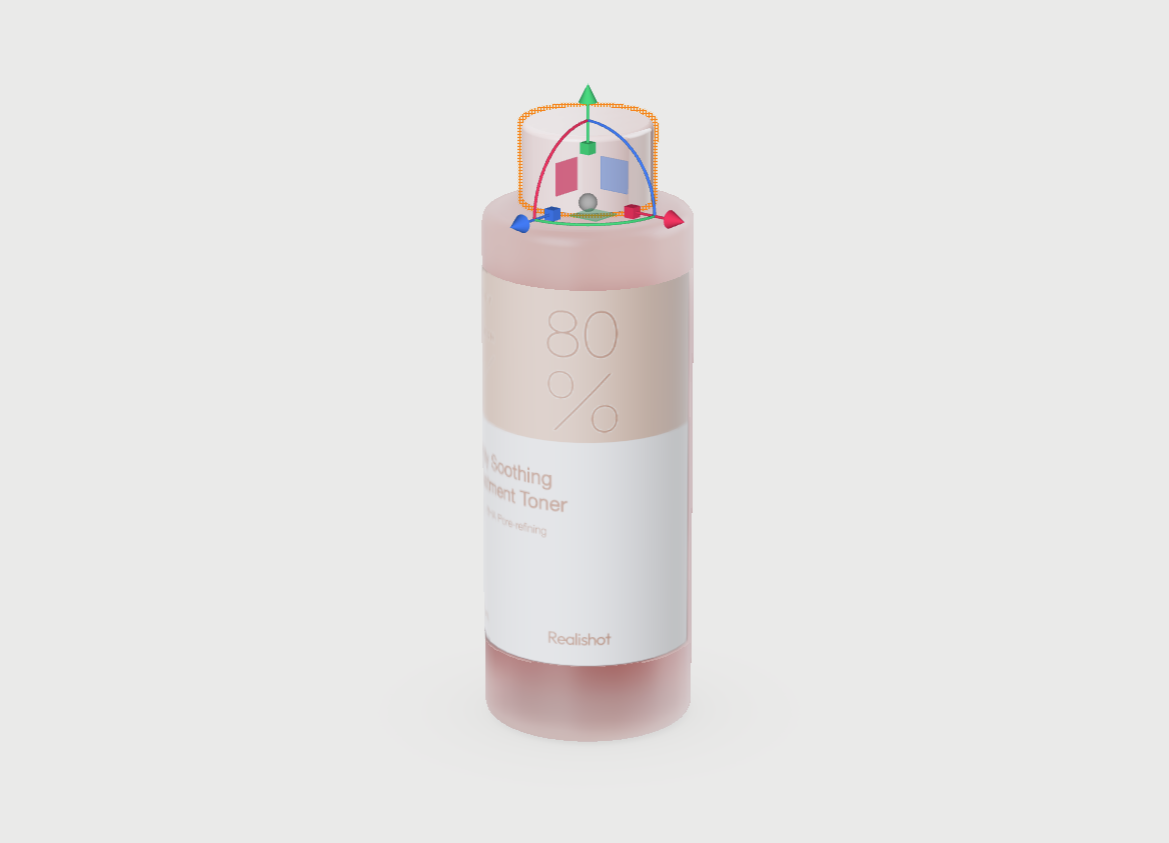
When selecting objects or elements in the scene, a manipulator called the control axis (gizmo) appears. Use it to:
- Arrows: Move elements
- Boxes: Scale objects (note: some elements don't support scaling)
- Curves: Rotate elements
Transformation
Modify object transformations (position, rotation, scale) using:
- The control axis
- Properties panel > Transformation parameters
Note: Rotation/scaling uses the pivot point as reference

Undo Operation
Ctrl + Z
Revert previous actions using the bottom toolbar button.
Copy Object
Ctrl + D
Creates identical copy at same position. Copies appear in directory tree with same name.
Group Objects
Ctrl + G
Organize directory tree by grouping objects.

Ungroup Objects
Ctrl + Shift + G
Dissolves group without moving child objects.
Object Toolbar
Provides specialized model tools:

Object toolbar in right panel (click arrow to expand)
Create Artwork Area
Creates editable surfaces for 2D graphics. See [[Artwork Area Editing]].

One-Click Grounding
Places selected model/group on ground plane (y=0) using lowest vertex as reference.
Texture Mapping
Adjusts texture projection using shape presets.
Use control axis to modify projection during mapping.
Save to Team Library
Saves selected model to Team Library > Mockups/Components/Elements.
Model Decimation
Reduces polygon count while preserving geometry.
Warning: Complex models may cause browser errors.

Normal Tools
- Flip Normals: Fixes rendering issues from inverted normals
- Smooth Normals: Creates softer lighting transitions

Bake AO
The generated texture can be adjusted in the Ambient Occlusion option of the material properties panel. For detailed information about ambient occlusion maps, see Materials section: Materials and Finishes > Ambient Occlusion. Precomputes ambient occlusion shadows:
- Resolution: Higher = sharper textures
- Quality:
- Low: 16 samples
- Medium: 256 samples
- High: 1024 samples

Adjust baked AO in Material Properties > Ambient Occlusion
Model Import
Import 3D models effortlessly in Realishot! Drag & drop custom files or use template library. Supports 80+ formats including GLB, FBX, CATIA, SOLIDWORKS CAD formats. Start designing instantly!
Material & Finishing
Master Realishot's professional material system with our comprehensive guide. Learn material library integration, multi-material switching, color variables, and precise control of material properties. Achieve end-to-end material design from 3D virtual prototyping to production validation.