Camera
Learn to add multi-angle cameras, configure viewfinder size/focal length/perspective limits for precise scene composition. Discover batch rendering techniques to optimize ray tracing efficiency. Unlock professional camera controls now!
Camera
Cameras are not just windows to view your scene - they can be configured with various settings like view constraints, depth of field, and orthographic view. Initially, you view scenes through the default camera, which cannot be modified. To access configuration options, add a new camera.
Add Camera
Click the Add Camera button in the top toolbar to create a camera at your current view position. Each added camera can have unique parameter settings.
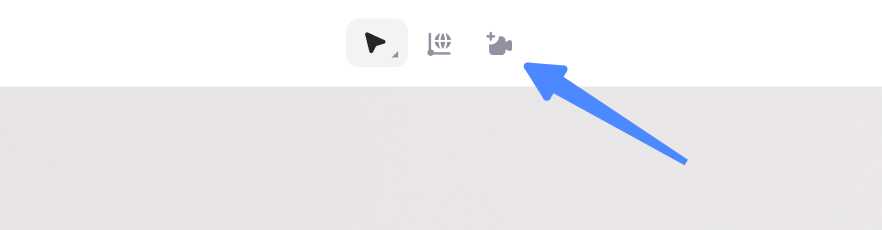
When adding a camera to your scene, the viewport doesn't automatically switch to the new camera. The camera is placed at your current view position, but you're not yet viewing through its lens. To enter a camera's perspective, click the icon shown below or the button in the right panel:
Camera Parameters
Show Viewfinder
Displays a semi-transparent gray frame in the viewport matching the viewfinder's aspect ratio. This frame represents the render area for ray-traced rendering.

Viewfinder Size
Select preset dimensions from the dropdown or set custom values. This determines output resolution during ray-traced rendering. See Ray-Traced Rendering for details.
Focal Length/Field of View
These settings control the camera's visible range. Higher values expand the field of view with stronger perspective distortion. Lower values narrow the view, approaching orthographic projection. Values are automatically converted between both parameters - adjust either one.
Camera Constraints
Camera constraints allow you to limit viewing parameters during user access. They restrict camera rotation, panning, zooming in, and zooming out. Setting all values to 0 creates a fixed view. Note: Camera constraints only take effect in published links.
- Rotation Constraints: Limits maximum rotation angles from current position
- Zoom Constraints: Controls maximum zoom-in (forward) and zoom-out (backward) distance
- Pan Constraints: Disables camera panning. When disabled, right-click (mouse) or two-finger drag (touch) pans the camera
Add to Render Queue
In the camera toolbar, add the current camera to the render queue for ray-traced rendering with its current parameters. See Ray-Traced Rendering for details.

Artwork Area Editing
Master Realishot Artwork Area Editing: Create print areas (planar/cylindrical mapping), preview in real-time 3D, adjust text styles, edit images (PNG/JPG/SVG), and control surface finishing parameters. Enhance product visuals with typography, graphics, and physical effects for efficient digital prototyping.
Ray Tracing Rendering
Realishot Ray Tracing simulates real light physics for photorealistic glass/metal/liquid rendering. Features real-time preview, single/queue rendering, customizable quality settings, and automatic album storage.